Most classroom edtech articles sell a fantasy. Thirty students open their devices, enter a code, and start learning without a hitch. Real classrooms do not work like that. The first ten minutes are usually spent fixing Wi-Fi issues, redirecting students to the right URL, and repeating the code for the fourth time. That is exactly why understanding joincrs com properly matters.
[QUOTABLE] “An edtech tool is only as fast as its slowest student login.”
If a lesson depends on Classroomscreen, the student entry process cannot be an afterthought. It has to be fast, clear, and resistant to small failures. Otherwise the tool becomes the delay.
The Real Relationship Between joincrs.com and Classroomscreen
A common mistake in weak reviews is treating joincrs.com as a standalone teaching platform. It is not. It is a lightweight entry point. The real system lives inside the teacher-facing Classroomscreen dashboard.
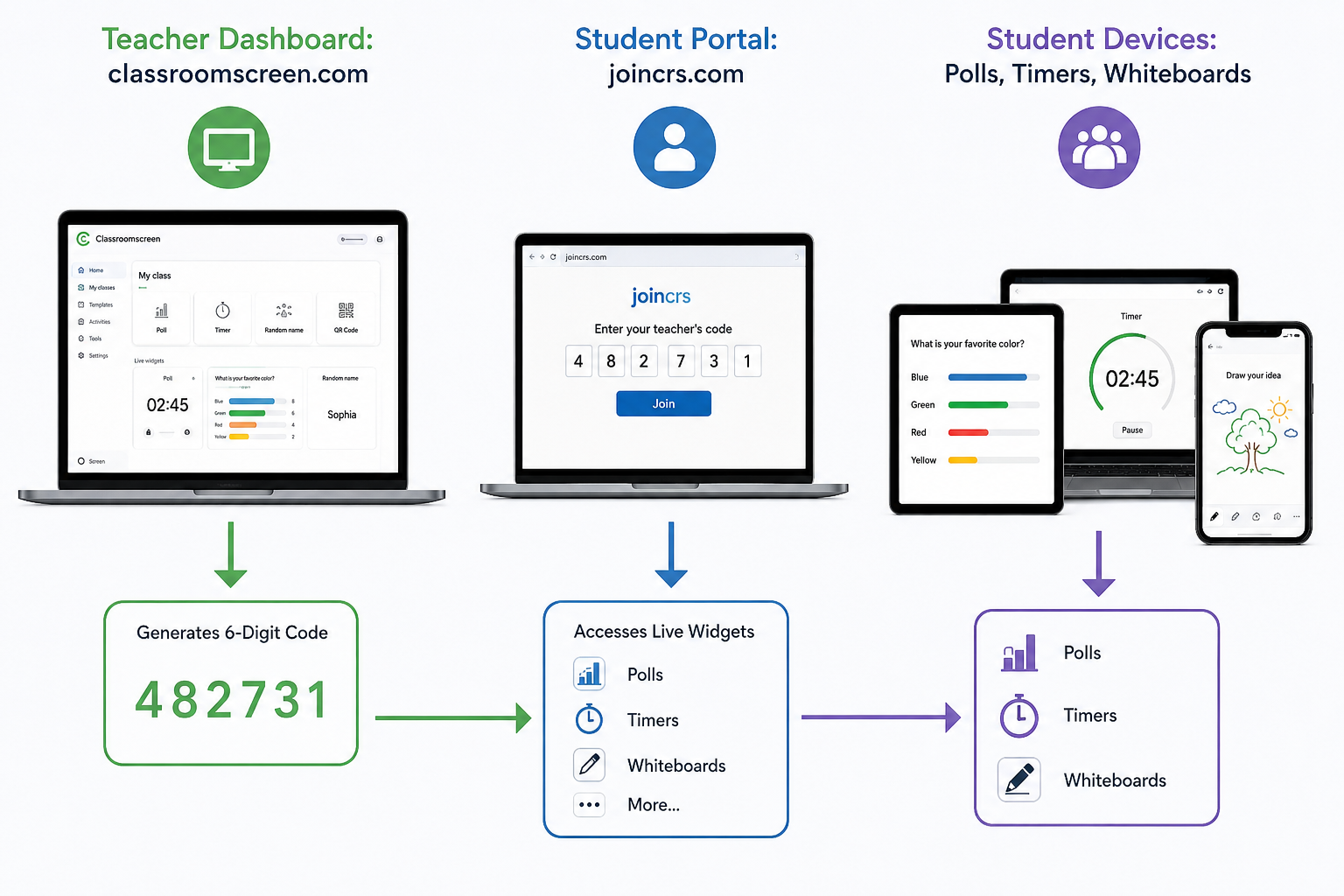
When a teacher opens a live session from classroomscreen.com, the platform generates a temporary session code. Students then go to joincrs.com and enter that code to access only the live widgets the teacher has enabled. They do not see the full dashboard, they do not configure anything, and they do not need accounts.
That split is smart design. It reduces overhead on student devices and removes the account friction that kills momentum in live lessons. The simplicity is the feature.
[QUOTABLE] “The best classroom tech is the kind students never need a tutorial to join.”
The counter-intuitive point here is simple: the stripped-down portal is not a weakness. It is the reason the tool works. Many competitors praise the widgets, but the real strength is that students can get in without downloads, profile setup, or app-store detours.
The Step-by-Step Reality of Student Onboarding
In a well-prepared classroom, student onboarding should take less than a minute. That only happens if the teacher prepares the live session before students start asking where to click.
- Launching the master screen
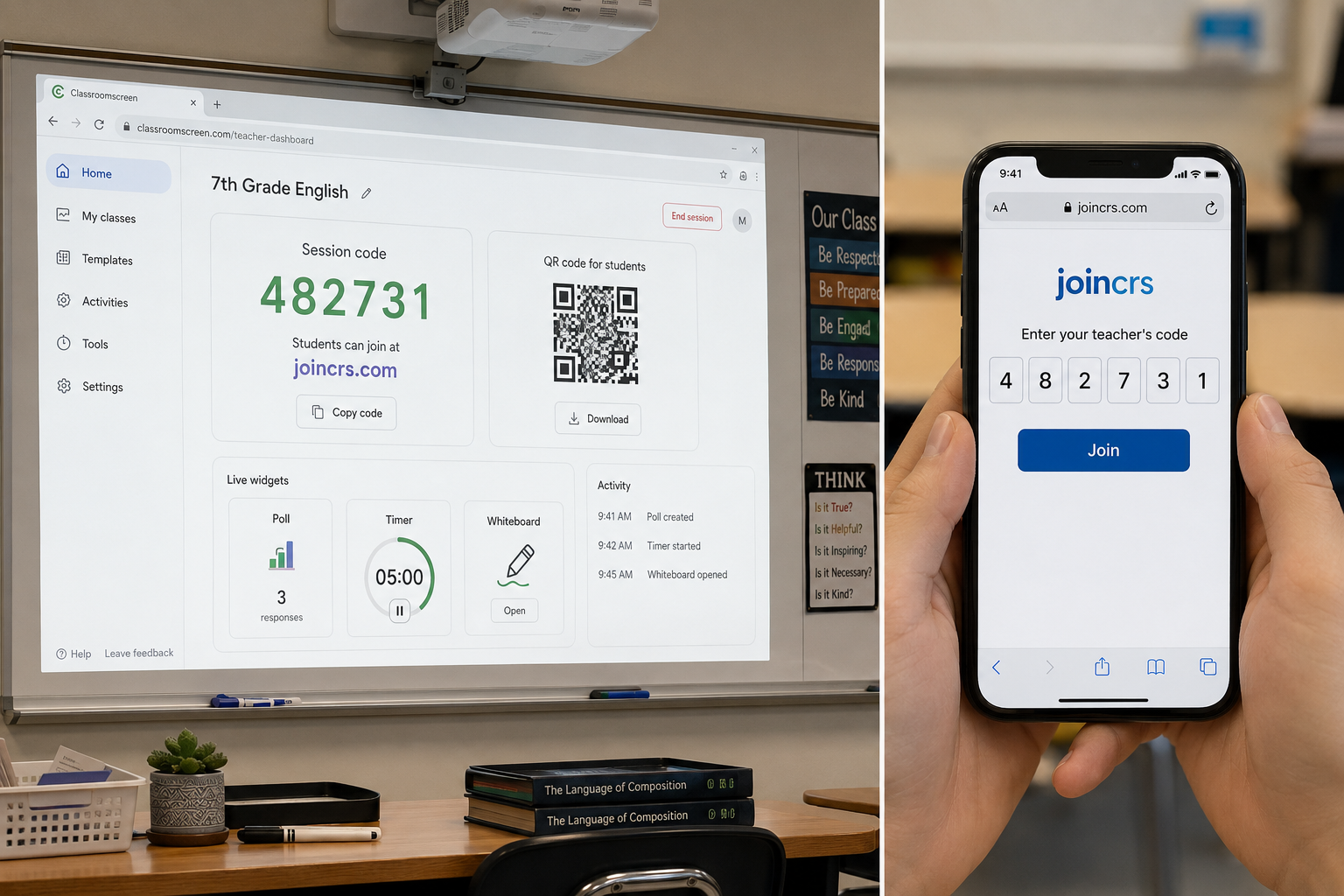
The teacher logs into Classroomscreen, builds the lesson workspace, and activates the remote participation feature. That action creates a fresh join code and usually a QR code for faster mobile access.
- Student navigation
Students open any normal browser on a Chromebook, tablet, desktop, or phone and go to the student portal. No app installation is needed. No password reset cycle starts. That alone saves more time than most edtech marketing claims.
- Entering the code
Students type the active session code shown on the projector or shared screen. They do not need to enter an email address, school ID, or full login profile.
A search like joincrs.com--code: 5751 570 usually reflects a temporary live session code shown in a spaced format for readability. The spacing is visual, not functional. Students can usually enter the digits as one code even if the teacher reads them as grouped numbers.
- Live interaction
Once the code is accepted, the student browser becomes a response surface for the exact tools the teacher is using. Polls appear live. Drawing prompts open when triggered. Traffic lights and other quick-response widgets sync with the teacher display.
The Troubleshooting Checklist for joincrs.com join Errors
When a student says the session is not loading, the platform is usually not the real problem. The issue is almost always local: expired code, blocked connection, stale browser state, or weak school Wi-Fi.
Check the code lifetime
Session codes are temporary. If the teacher opened a workspace earlier in the day and tries to reuse the same session later, the code may already be dead. Generate a fresh one instead of trying to force the old tab to behave.
Investigate content filters
School networks often block services that rely on real-time syncing. If students see a blank or frozen page, the issue may be the network filter, not the device. In that case, the IT team may need to allow both Classroomscreen and the student portal through the firewall.
Clear local browser state
Sometimes a device tries to reopen a stale session from cached browser data. A hard refresh, private browsing window, or full tab restart often fixes it in seconds.
Watch the room, not just the screen
This is the part competitors skip. If five students are still entering the code while the other twenty-five are ready, the lesson has already split into two tempos. Pause and reset the room. Fast starters can wait thirty seconds. Lost students cannot recover if the teacher keeps pushing forward.
[QUOTABLE] “The real lag in classroom tech is usually human coordination, not processing power.”
Where Classroomscreen Falls Short: The Accountability Gap
A lot of articles frame account-free access as pure upside. That is too simplistic. Yes, anonymity speeds up entry. It also weakens long-term tracking.
If students join without persistent identities, the teacher gets fast live responses but limited historical accountability. That works for formative checks. It does not work well for long-term grading, progress reports, or student portfolios.
[QUOTABLE] “Anonymity buys you speed, but it costs you data tracking.”
That is not a flaw if the tool is used for the right job. It becomes a flaw only when teachers expect it to replace a learning management system.
Classroomscreen vs Google Classroom: Stop Comparing the Wrong Things
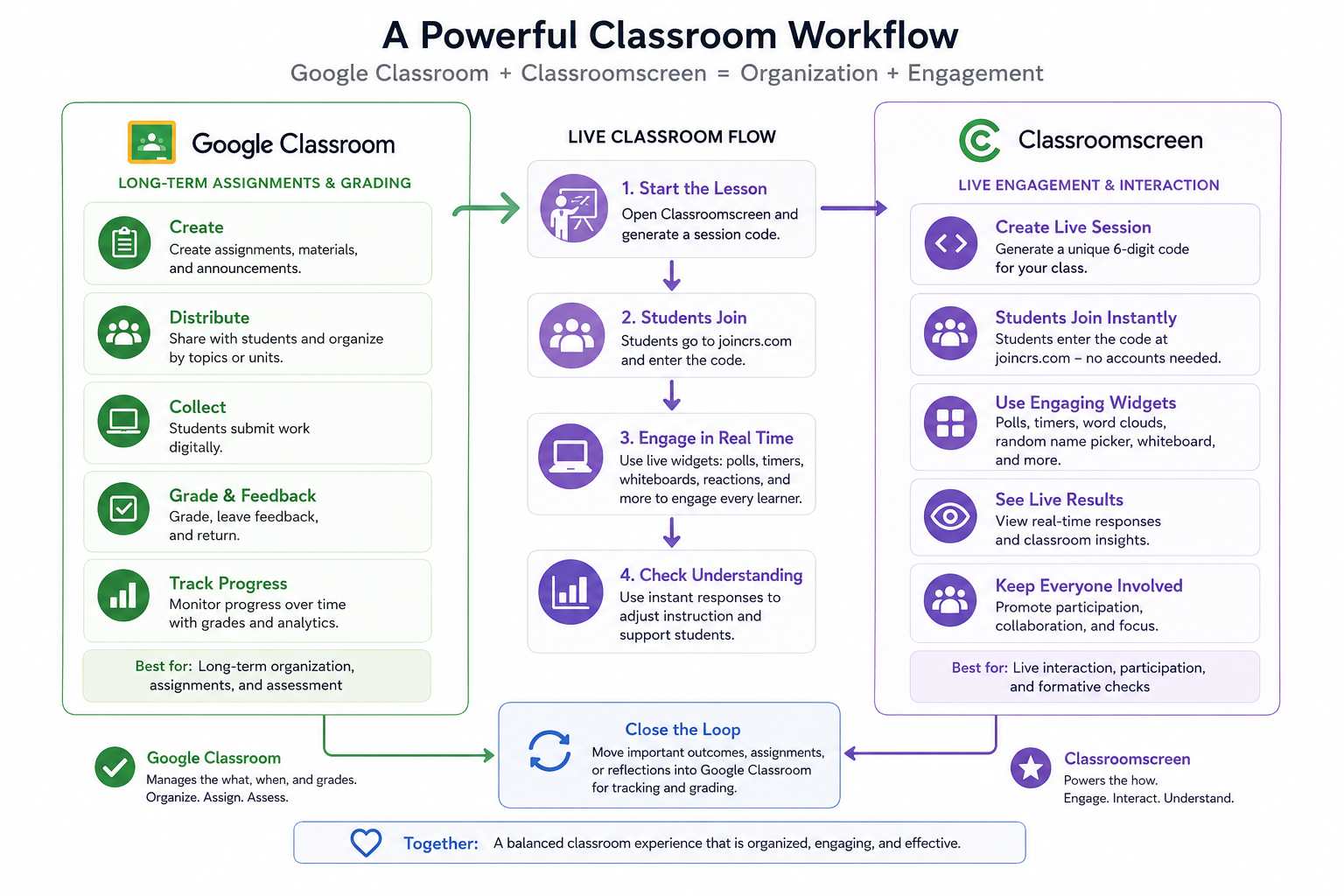
Teachers often compare these tools badly because both names sound similar. They are not direct substitutes. One is for live lesson interaction. The other is for assignment management and long-term class administration.
| Capability | joincrs.com / Classroomscreen | Google Classroom |
|---|---|---|
| Primary use case | Live, synchronous engagement during class | Assignment delivery, submissions, and grading |
| Student sign-in | No account required, uses a temporary code | Requires school or personal Google account |
| Best moment to use it | During a lesson, meeting, or guided activity | Before class, after class, and for ongoing coursework |
| Data retention | Session-based, lighter historical record | Long-term archive and gradebook |
| Teacher goal | Keep students involved right now | Manage class structure over time |
The best setup is not choosing one over the other. It is using Google Classroom as the long-term container and Classroomscreen as the live lesson layer.
What the Free Plan Actually Gives You
This is where most competitor articles get vague. They mention a Pro plan, maybe drop a price, and move on. That is not enough for a teacher deciding whether this tool will break mid-lesson.
The free tier is usable for basic classroom control and simple engagement. For many teachers, that covers daily timers, visual signals, and quick live interactions. But advanced saving, deeper analytics, and some richer collaborative workflows are where paid limits begin to matter.
The practical advice is this: run one full lesson on the free plan before recommending it to a whole department. The moment you hit a missing feature in the middle of instruction, you will know whether the paid version is justified.
FAQ
What is joincrs.com used for?
joincrs.com is the student entry page for Classroomscreen sessions. Students enter a live code there to access classroom widgets such as polls, timers, and response tools.
Why does my student get an invalid session error on joincrs.com join?
That usually means the code is wrong, expired, or tied to a session the teacher has already closed. It can also happen when the browser is stuck on an old session state.
Can I reuse a code like joincrs.com--code: 5751 570 every day?
No. Session codes are temporary and change when a new live session starts. They are not permanent classroom access codes.
Does joincrs.com work on old school Chromebooks and tablets?
Usually yes, because the portal is browser-based and lightweight. The bigger problem is often weak school Wi-Fi or restrictive network filters, not device age.
Is joincrs.com enough for grading and long-term student records?
No. It is better for live formative interaction than long-term assessment storage. Teachers who need records should pair it with a platform like Google Classroom.