Most online tutorials explaining how to set up DeepSeek on Janitor AI follow the same lazy script. They tell you to copy an API key, paste it into a box, and hope the chat starts working. Then you send one message, get an endless loading spinner or an empty bubble, and waste the next twenty minutes changing random settings.
That is not a user problem. It is a bad tutorial problem.
Janitor AI is basically the front-end. The actual model lives somewhere else. It does not host the model, run the inference, or correct broken API values for you. It takes your character settings, turns them into a request, and sends that request to an external provider. If your base URL is wrong by one slash or your model name is off by one character, the whole setup can fail quietly.
An API connection does not compromise. It either matches the documentation exactly or it fails quietly.
The first time I tried connecting DeepSeek, I stared at a permanent loading wheel for ten minutes. There was no error message. The platform just sat there because I forgot to type /v1 at the very end of my endpoint URL.
Why Most DeepSeek + Janitor AI Guides Fail
Most competing articles make the same mistake. They spend too much time explaining what DeepSeek is and almost no time explaining why the connection breaks inside Janitor AI.
This matters because this setup is not complicated. It is just easy to get wrong. Readers do not need a long detour into enterprise AI trends before they can send a message. They need to know which fields matter, what common mistakes look like, and which settings are safe enough to start with.
The other big problem is padding. A lot of articles try to look authoritative by listing random corporate news or vague claims about model quality. That content does not help the person staring at a broken chat window.
What Janitor AI Actually Does Before You Touch Settings
Janitor AI is a visual interface layered over external model providers. It takes your prompt, system instructions, chat history, and character setup, then routes that data to an API endpoint using an OpenAI-compatible request format.
That means your setup has three critical parts:
- A valid DeepSeek API key
- The correct API base URL
- A model name that exists and matches exactly
If one of those is wrong, the message does not reach a valid endpoint in the way Janitor AI expects.
The data path in plain English
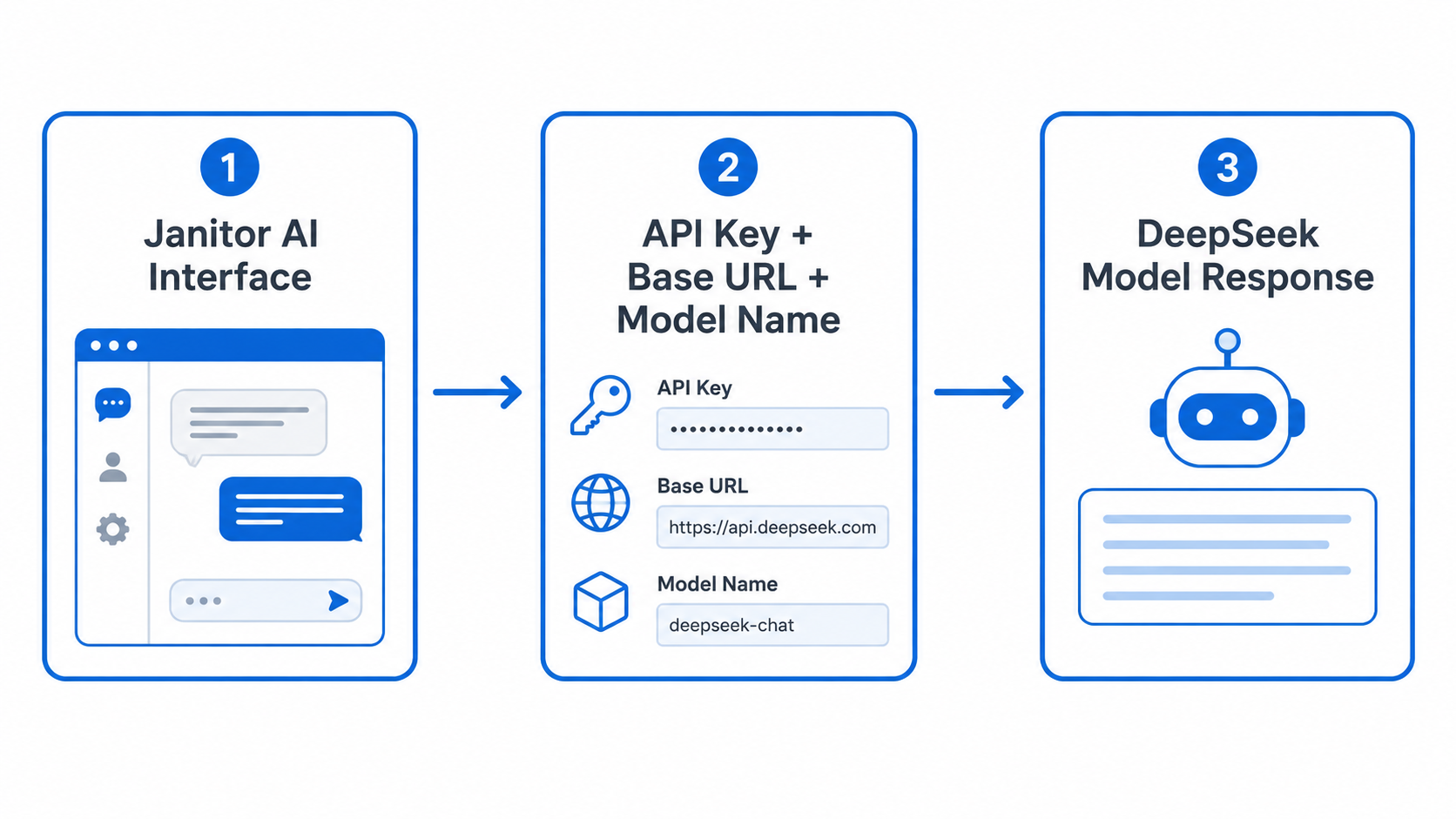
That is the whole system. When this flow breaks, the answer is almost never hidden. It is usually one field entered incorrectly.
Janitor AI does not run the AI. It just sends the request to the AI you configured.
Step-by-Step: How to Set Up DeepSeek on Janitor AI
Follow these steps in order. Do not improvise. Do not swap values between fields. Do not assume Janitor AI will detect and fix a malformed endpoint.
Step 1: Create Your DeepSeek Account and API Key
Go to the DeepSeek platform and create an account. Open the developer or API section of the dashboard and generate a new API key. Copy it immediately and save it in a secure place.
Treat that key like a password, not like a casual token. If it ends up in a screenshot, browser extension log, or shared file, someone else can use your balance.
Do yourself a favor and throw this string straight into your password manager or a locked note app. Do not leave it sitting in a loose notepad file on your desktop.
Step 2: Use the Correct Base URL
This is the part most users get wrong. Your API base URL must be entered exactly as:
https://api.deepseek.com/v1
The /v1 matters. Leaving it out is one of the fastest ways to create an endless loading state with no helpful explanation. People often assume the key is invalid when the real issue is the endpoint path.
Step 3: Open Janitor AI API / Model Settings
Open Janitor AI, go to Settings, then find API / Model Settings or the custom API area. Choose the provider option that supports a custom or OpenAI-compatible API.
This part is usually straightforward, but readers often move too fast here and paste values without double-checking the provider type. If the wrong provider is selected, the rest of the setup can look correct while still failing in practice.
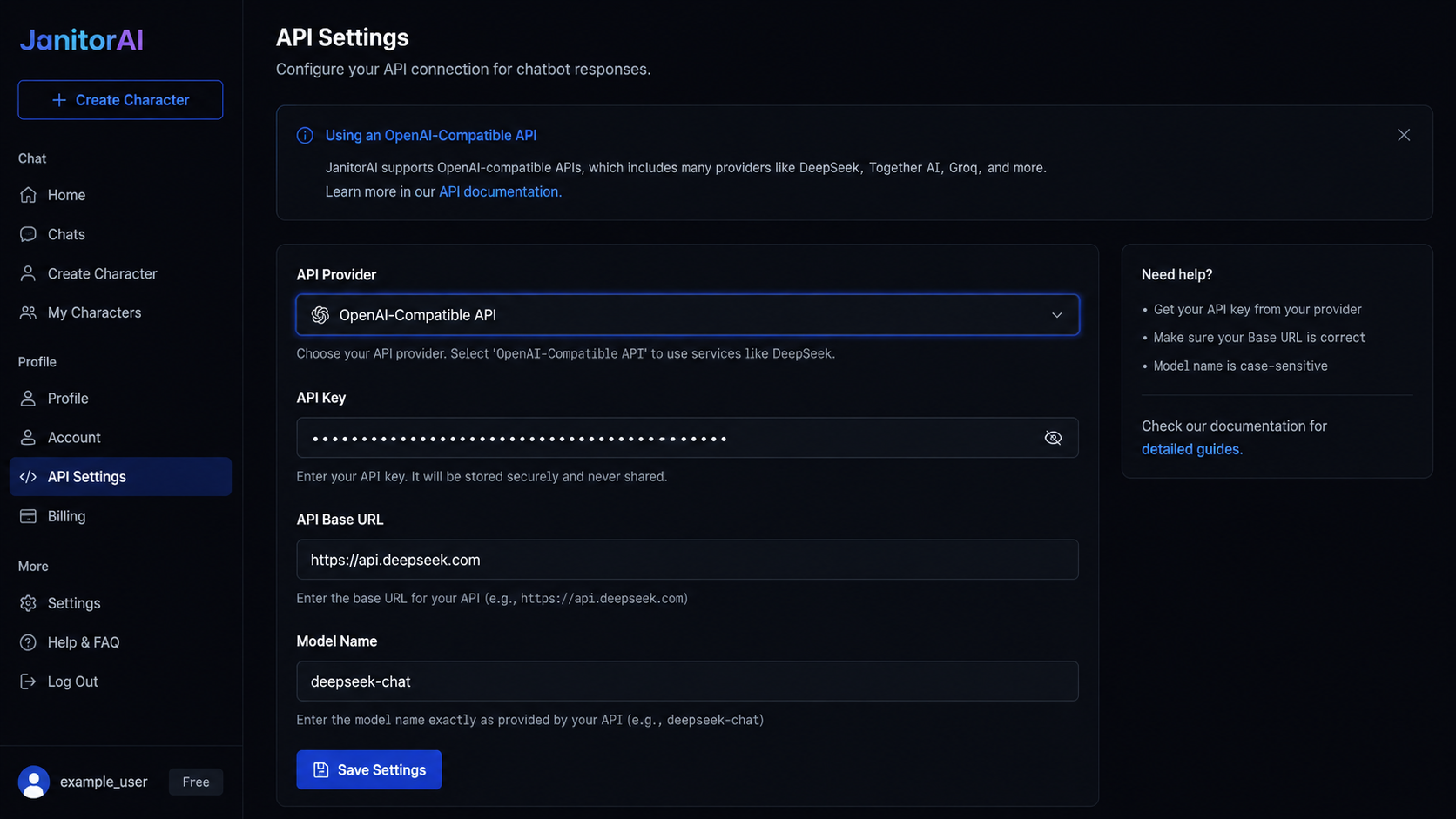
Step 4: Enter the Fields Exactly
Use the table below as the source of truth.
| Configuration Field | What to Enter | Common Failure Point |
|---|---|---|
| API Key | Your DeepSeek API key exactly as generated | Leading or trailing spaces when pasting |
| API Base URL | https://api.deepseek.com/v1 | Missing /v1 or using the wrong root path |
| Model Name | deepseek-chat or another valid model string | Typos, wrong capitalization, outdated names |
This is where weak articles usually become vague. Do not let the term "custom API" make the process sound flexible. It is not flexible. It is strict.
Step 5: Save and Test With a Controlled Prompt
Once the fields are saved, test the setup with a short prompt instead of jumping straight into a long roleplay session. Use something simple like:
Respond in one sentence and tell me which model you are.
A controlled test removes noise. If the reply fails here, the problem is in the connection, not in your character design.
Which DeepSeek Model Name Should You Use?
This is the question most articles skip entirely, and it causes real failures for anyone trying the newer V3 or R1 models.
The model name field in Janitor AI must match an exact API identifier. There is no dropdown, no autocomplete, and no error message if you type the wrong one — the chat just returns nothing.
Use the table below based on what you are trying to do:
| Use Case | Model Name to Type | Notes |
|---|---|---|
| General conversation and roleplay | deepseek-chat | Standard stable model, best for most users |
| Free access via OpenRouter | deepseek/deepseek-chat-v3-0324:free | Use with OpenRouter base URL (see next section) |
| Reasoning and complex prompts | deepseek/deepseek-r1:free | Free via OpenRouter; slower but more analytical |
| Coding assistance | deepseek-coder | Direct DeepSeek API only |
Always verify current model identifiers against the official DeepSeek API documentation before entering them, since model names change between releases.
Using OpenRouter as a Free Alternative to Direct DeepSeek API
Most guides only show you the paid direct API route. But if you want to run DeepSeek on Janitor AI for free or test it before committing to a paid plan OpenRouter is the cleaner option.
OpenRouter acts as a free middle layer that routes your requests to DeepSeek models without requiring a direct DeepSeek API balance. Setup is nearly identical:
- Create a free account at openrouter.ai
- Generate an OpenRouter API key from the dashboard
- In Janitor AI, enter the API key from OpenRouter (not DeepSeek)
- Set the API Base URL to: https://openrouter.ai/api/v1
- Set the Model Name to a free DeepSeek model string, such as deepseek/deepseek-chat-v3-0324:free or deepseek/deepseek-r1:free
OpenRouter is the setup I recommend for anyone testing this for the first time. You avoid draining a DeepSeek balance during trial and error, and the model quality is identical since it routes to the same infrastructure.
The free tier has rate limits, so for heavy or long-session use you will eventually want to move to a direct DeepSeek API key. But for getting started and verifying your Janitor AI config is working, it removes the cost risk entirely.
The DeepSeek Settings That Actually Work
A lot of bad advice gets copied from older GPT-style setup guides. The biggest example is temperature.
The counter-intuitive truth about temperature
A common tip says to raise temperature to 1.1 or 1.2 for more creativity. That advice can make DeepSeek worse inside Janitor AI. Instead of becoming more vivid, the output becomes unstable, repetitive, or messy after a few turns.
This is why the safer starting point is lower than many roleplay users expect.
I tested a few chats at a temperature of 1.1. By message three, the model started repeating the exact same phrases in a circle and completely broke character. Dropping it back down to 0.7 fixed it instantly.
Recommended starter values
- Temperature: 0.7
- Top-p: 0.9
- Max tokens: 2,000 to 4,000
- Frequency penalty: 0 or very low
- Presence penalty: 0 or very low
If the model starts drifting or looping phrases, lower the temperature before touching Top-p. Most people do the reverse. That usually wastes time.
With DeepSeek, stable beats "creative" almost every time.
The One Step Most People Miss After Saving the API
Saving the API globally is not always enough. This is one of the most important points in the whole setup and most articles barely mention it.
You still need to open the specific character or chat settings and assign the custom model there. If you skip that step, Janitor AI may keep using its default model or another previously selected provider.
This is where people get tricked into thinking the setup worked when it did not. You think DeepSeek is live because the API panel is saved, but the chat is still running on a different backend.
A saved API is not the same thing as an assigned model.
Quick cause-check before changing anything
Before touching the API key again, check these three things:
- Is the correct provider selected?
- Is the base URL exact, including /v1?
- Is the character actually assigned to the custom model?
That three-point check solves more setup failures than random trial and error ever will.
Troubleshooting the Four Silent Errors
If the setup fails, do not reset everything at random. Match the symptom to the most likely cause.
Error 1: Endless Loading Spinner
- Symptom: You send a message and the chat keeps loading forever.
- Most likely cause: The API base URL is wrong, incomplete, or missing /v1.
- Fix: Re-enter the full base URL exactly as https://api.deepseek.com/v1.
Error 2: Blank Reply With No Text
- Symptom: The interface returns an empty reply bubble.
- Most likely cause: The model name is wrong or unsupported.
- Fix: Check the exact model identifier in the current DeepSeek documentation and remove any accidental spaces.
Error 3: Replies Cut Off Mid-Sentence
- Symptom: The response starts fine but stops abruptly.
- Most likely cause: The max token setting is too low.
- Fix: Raise the token limit to the 2,000 to 4,000 range and test again.
Error 4: Rate Limit or Spending Shock
- Symptom: You hit request limits or notice costs rising faster than expected.
- Most likely cause: Long chats keep re-sending growing context windows, which increases token usage with every new message.
- Fix: Monitor your usage inside DeepSeek or OpenRouter. Trim long threads. Janitor AI does not cap your spending automatically.
Is DeepSeek Actually Worth Using on Janitor AI?
Yes, for many users it is. But not for the reasons fluffy comparison articles usually give.
DeepSeek is appealing because it gives you strong long-form reasoning and solid dialogue quality without the pricing pressure that often comes with mainstream premium APIs. For users running extended chats, that cost gap matters more than brand recognition. This is not a niche workaround either — major platforms like Perplexity trust DeepSeek's exact API architecture to power their own production-grade search tools.
The main win here is simple: you get more control over cost and setup. It is not perfect. If you want highly polished creative prose on every reply, you may still prefer another model. But for users who care about cost control, solid reasoning, and practical roleplay performance, DeepSeek is a serious option — not a backup option.
Get the endpoint right, keep the settings conservative, assign the model to the actual character, and DeepSeek on Janitor AI becomes far less mysterious than most tutorials make it sound.
FAQ
Why is Janitor AI endlessly loading after I added DeepSeek? The most common reason is a wrong base URL. Make sure it is entered exactly as https://api.deepseek.com/v1. Leaving out /v1 is a classic silent failure that produces no error message.
What model name should I use for DeepSeek in Janitor AI? For most conversational use cases, start with deepseek-chat. If you are using OpenRouter, use deepseek/deepseek-chat-v3-0324:free for the latest free model. Always verify current model names in the official documentation.
Can I use DeepSeek on Janitor AI for free? Yes, through OpenRouter. Create a free OpenRouter account, get an API key, set the base URL to https://openrouter.ai/api/v1, and use a free DeepSeek model string like deepseek/deepseek-r1:free. Free tier has rate limits but works well for testing and casual use.
Why is DeepSeek repeating itself or acting weird in chat? Your temperature is likely too high. Start at 0.7, then reduce toward 0.5 or 0.6 if the output becomes unstable or repetitive. Do not raise Top-p before trying a lower temperature first.
Does Janitor AI automatically use DeepSeek after I save the API key? Not always. In many cases, you still need to explicitly assign the model inside the specific character profile or individual chat settings panel. Check that step before assuming the connection is broken.
Where do my prompts go when using DeepSeek on Janitor AI? When you send a message, Janitor AI passes the prompt text directly to DeepSeek's servers for processing. Your data is handled according to DeepSeek's official API privacy and data retention policies — not Janitor AI's terms alone. If privacy matters to you, read DeepSeek's developer policy to understand how long API logs are stored.